Singletons in Godot 4: 4 Real Approaches
When learning Godot, you often hear that “Singleton = Autoload”. 🤔 And technically, Autoload is the most convenient way to have a global element, but Singleton as a pattern is something else.
💡 The key difference:
- Singleton is the idea: “I want a single instance of something”.
- Autoload is the Godot tool: “instantiate this at startup and keep it alive all the time”.
🎯 The key point is this:
⚠️ Not every singleton should be global.
✨ Sometimes you want it only within a scene (and it dies when you exit).
🔧 Sometimes you want it persistent but manually created.
📝 And sometimes you want it static just for in-memory configuration
In this post, we build a demo and explain 4 real approaches:
- Autoload (Godot)
- Scene-based Singleton (lives only in the level and is destroyed on exit)
- “Manual Autoload” (you create it in Main and mount it on root)
- Static Singleton (in-memory config + reset to defaults)
💻 Source code available: All the code from this tutorial is available on GitHub so you can try it out, modify it, and learn by experimenting. It’s completely free! 🎉
🎮 Demo Used (Idea)
We create a minimal UI with buttons to test each singleton pattern.
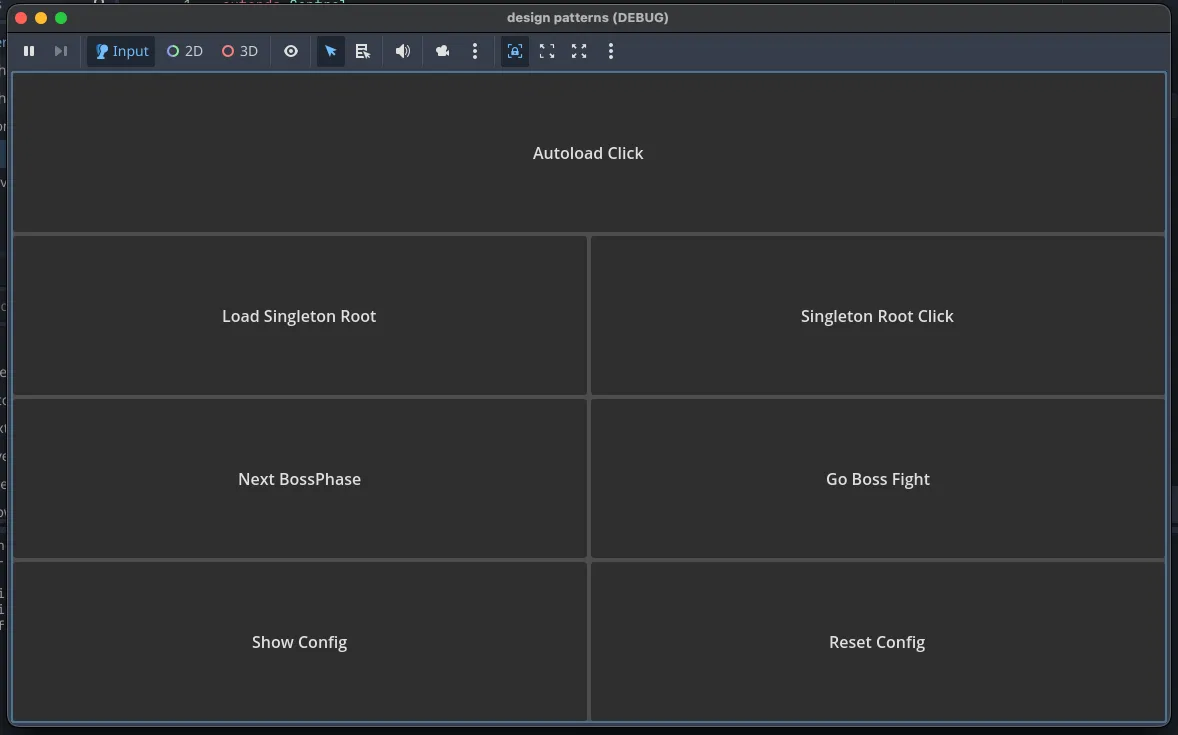
💡 Note: Don’t worry, later you’ll understand how each one works.
1️⃣ Autoload: Godot’s “Global Singleton” 🌍
Autoload means that Godot instantiates the script or scene from the beginning of its execution and leaves it hanging in the root of the node tree.
✨ Characteristics:
- ⏰ Lives always while the app is open. It’s usually one of the first things executed.
- 🎯 Ideal for global services like
AudioManager,GameManager,Settings, etc.
Example: AudioService.gd
extends Node

func _enter_tree() -> void:
	print("[AudioService] enter_tree (autoload)")

func _ready() -> void:
	print("[AudioService] ready (autoload)")

func play_ui_click() -> void:
	print("[AudioService] UI Click!")
And to activate it, we add it in the menu Project > Project Settings > Globals > Autoload:
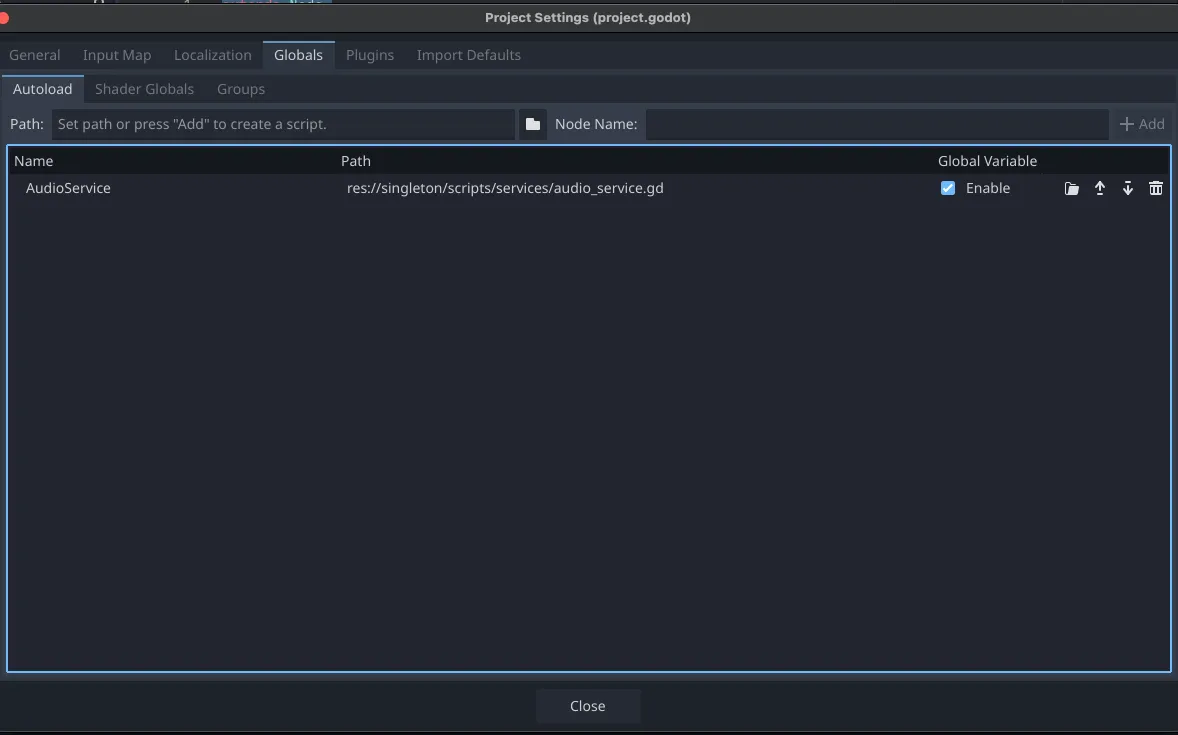
And now from any scene you can call it and the Godot editor will help you with autocomplete:
AudioService.play_ui_click()⚠️ Warning: If you accidentally instantiate another
AudioService, nothing weird will happen, you’ll just have two different nodes.
2️⃣ Scene-based Singleton: Lives Only in the Current Scene 🎬
💥 This is the point many people don’t consider: there are singletons that shouldn’t be global.
🎯 Ideas for implementing it this way:
- BossFightDirector: controls everything related to the boss fight. It doesn’t make sense for it to live outside that scene, but it should have only one instance.
- RunSessions (Roguelike): state of an ongoing game, managing health, items, enemies, etc.
- PuzzleController: if you have a complex puzzle that only activates in a certain level.
- DialogueSession: controls the state of NPC dialogues in a scene, decides which one activates, etc.
🧠 The mental rule:
💡 If the parent node / scene is destroyed, that singleton should disappear.
Example: BossFightDirector.gd
extends Node
class_name BossFightDirector

static var instance: BossFightDirector
var phase := 1

func _enter_tree() -> void:
	if instance != null and instance != self:
		queue_free()
		print("[BossFightDirector] not created")
		return
	instance = self
	print("[BossFightDirector] created")

func _exit_tree() -> void:
	if instance == self:
		instance = null
		print("[BossFightDirector] destroyed")

func next_phase() -> int:
	phase += 1
	print("[BossFightDirector] phase -> ", phase)
	return phase
📌 Important: Unique
class_nameso it can be used in any script and useinstanceas global access.
And in the boss scene, we add it as a child node:
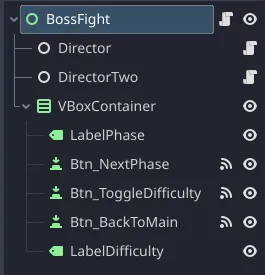
In the image we see two Directors, this is so that when the scene starts, the second one is destroyed and only one remains.
And this is how we would call it from any script:
func _on_btn_next_phase_pressed() -> void:
	var newPhase = BossFightDirector.instance.next_phase()
	labelPhase.text = str(newPhase)
or
if BossFightDirector.instance:
  BossFightDirector.instance.next_phase()
else:
  print("[Main] No BossFightDirector (not in boss scene)")
💡 Tip: Technically both scripts work the same, but the second one avoids errors if called outside the boss scene.
🔍 What do we demonstrate in the demo?
- In Main, you try to use the director and it doesn’t exist.
- In BossFight, when entering:
- the instance is created
- if there are duplicates, the extra is deleted
- When exiting the scene:
_exit_tree()is executedinstance = null
✅ This allows you to have a context-controlled singleton, without contaminating the rest of the game.
3️⃣ “Manual Autoload”: Persistent, but You Create It from Code and Mount It on Root 🔧
Sometimes you want a service that persists between scenes, but it’s not good to register it as Autoload.
🎯 The classic example: analytics sending system
- ❌ If user doesn’t accept terms → it shouldn’t exist
- ✅ If they accept → it should live all the time
📋 More examples:
SaveServicethat you only mount when you enter the game (not in initial menu).TelemetryServiceorNetworkServicethat only exists when the user is connected.
💡 The idea is simple:
- 🏗️ Instantiate the service from the desired scene (
Main/Boot) - 🔗 Hang it from
get_tree().root - ✅ Done: survives
change_scene
Example: SaveService.gd
extends Node
class_name SaveService

static var instance: SaveService

func _enter_tree() -> void:
	if instance != null and instance != self:
		queue_free()
		print("[SaveService] not created")
		return
	instance = self
	print("[SaveService] created")

func _exit_tree() -> void:
	if instance == self:
		instance = null
		print("[SaveService] destroyed")

func save_game() -> void:
	print("[SaveService] Saving...")
And in the Main scene we create it and mount it:
	var save_service = SaveService.new()
	save_service.name = "SaveService"
	get_tree().root.add_child(save_service)
And now from any scene you can call it just like before:
func _on_btn_save_root_service_pressed() -> void:
	if SaveService.instance:
		SaveService.instance.save_game()
	else:
		print("[Main] No SaveService (load Singleton)")
⚠️ Important: No matter how much you try to create another
SaveService, the singleton pattern will prevent multiple instances from being created. 💡 Recommendation: Always validate that the instance exists before using it.
✨ Main Benefit
- It behaves like an Autoload (lives all the time and doesn’t get destroyed if you change scenes)
- But you have full control of when it’s created (not necessarily at game startup)
4️⃣ Static Singleton: In-Memory Configuration + Reset to Defaults 📝
There are cases where you don’t need nodes, or a specific lifecycle, or even to exist in the node tree. You just need to store configuration in memory and have it accessible from anywhere.
💡 What I just described is a static singleton.
🎯 The best example: global modifiers or settings.
Example: GameConfig.gd
class_name GameConfig

static var DEFAULTS := {
	"master_volume": 0.8,
	"fullscreen": false,
	"difficulty": "normal"
}

static var current := DEFAULTS.duplicate(true)

static func set_value(key: String, value) -> void:
	current[key] = value

static func get_value(key: String, fallback = null):
	return current.get(key, fallback)

static func reset_to_defaults() -> void:
	current = DEFAULTS.duplicate(true)

static func show_current_info():
	for key in current:
		print(key, " = ", current[key])

static func toggle_difficulty():
	if current["difficulty"] == "normal":
		current["difficulty"] = "hard"
	else:
		current["difficulty"] = "normal"
And from any script you can use it like this:
func _on_btn_reset_config_pressed() -> void:
	GameConfig.reset_to_defaults()
	print("[Main] config reset")

func _on_btn_show_current_config() -> void:
	GameConfig.show_current_info()
🔍 Notice: We don’t extend
Nodeor use lifecycle, we just define static variables and functions. ✨ But we still useclass_nameto facilitate its use.
🎯 The Important Part
- This lives in memory.
- If you close the game, it returns to defaults.
- If you want it to return to base after finishing a game, you call:
GameConfig.reset_to_defaults()💾 Note: If you want to persist it between sessions, then we’re talking about saving it to disk, but we’ll talk about that another day.
🤔 Which to Use and When?
It all depends on the context and needs of your game, but here’s a quick summary:
Autoload
✅ When the service must always exist (global audio, global input, analytics).
❌ Don’t use it as a “global variable bag” for everything.
Scene-based Singleton
✅ When the state only makes sense in a level/scene (boss, puzzle, run).
✅ When you want it to be automatically destroyed on exit.
❌ Don’t use it if you need it to persist between scenes.
Manual Root (Controlled Autoload)
✅ When you want persistence between scenes but with creation control.
✅ Useful for “mode” systems: gameplay, login, etc.
❌ If it must always exist, better use Autoload.
Static Config
✅ Simple config and state in memory, without nodes.
✅ Easy reset to defaults when closing a game or restarting a run.
❌ Doesn’t work if you need signals, timers, processing, or tree access.
🎯 Conclusion
Godot gives you autoload, and that’s fine… but the singleton pattern is much more than that.
✨ With these 4 approaches you can adapt the pattern to your real needs, avoiding bad practices like:
- ❌ Using an autoload as a “global variable bag”
- ❌ Having things in memory that shouldn’t exist all the time
🎯 The important thing: Understand the concept of singleton (a single instance) and adapt it to the tools Godot gives you, to create clean and maintainable systems.
💡 Remember: The singleton pattern is just one piece of the puzzle, use it wisely along with other design practices to create complex and optimized systems.
And as always, happy coding! 🚀✨
If you see something to improve, open an issue or send me a message.